Congrats on successfully downloading and logging into our iOS app. You know the basics but want to learn more about the advanced features? You came to the right place. Upon pressing Menu, you’ll see a number of items, as shown below. Let’s go through them together.
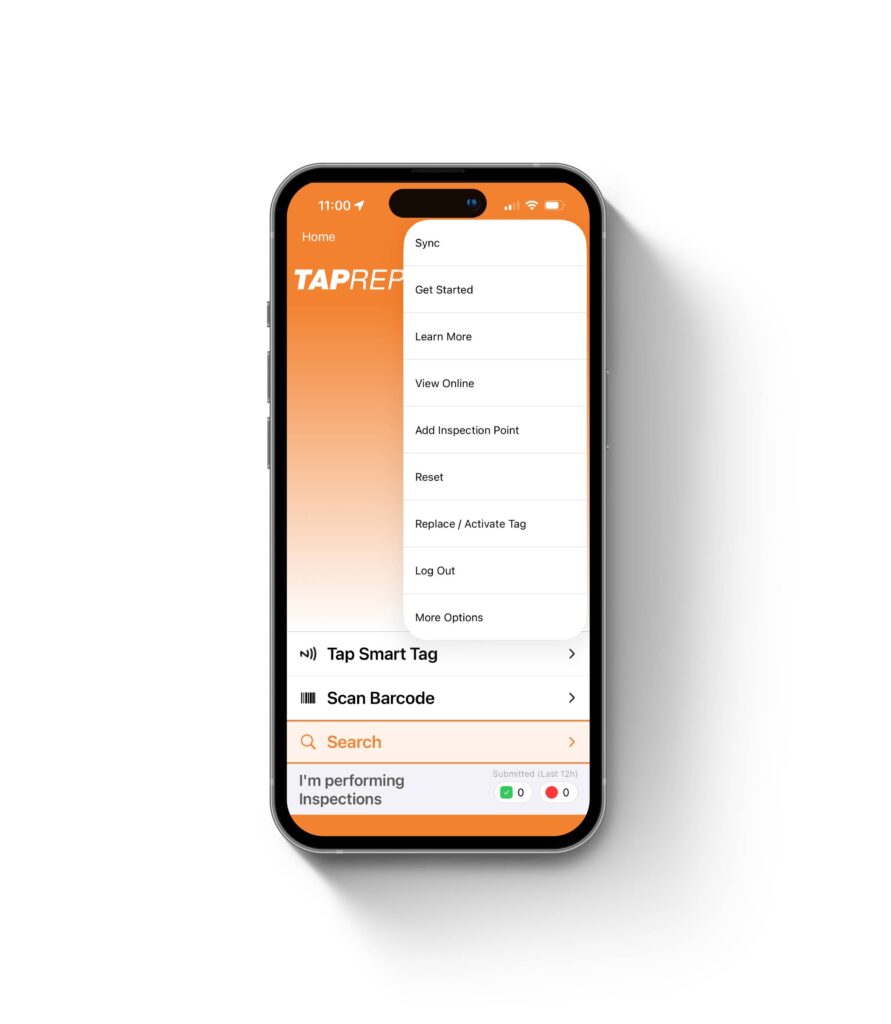
Sync
Pressing Sync will upload all your inspections. By default, the app will auto-sync every 3 submitted inspections. It also auto-syncs when logging in and out. However, it’s good practice to sync upon completion manually, so you know everything has been uploaded. All datestamps are from when you submitted the inspection. Inspections are only cleared off your phone when our servers have successfully received everything, and you see Sync complete. If you lose connection while syncing, don’t worry, everything will still be saved on your phone until you attempt to sync again.
Get Started (for iPhone only)
The Get Started page allows you to easily switch between properties and select the filters you need to begin using the system. You can refine your selection by filtering by building and group. Depending on the type of work you are completing, select either Inspections for most work or Maintenance for more extensive work. Select the appropriate time frame based on when you first started the inspection. If you are beginning a new inspection, you can leave the time frame set to Auto.
View Online
Pressing View Online will launch a browser where you can navigate throughout your property. Think of it as another lens for looking at your data rather than Menu > Search. If applicable, you can also use this feature to assign your scanner to another property. Please note that you will need the internet to use this feature.
Add Inspection Point
Pressing Add Inspection Point is great for adding something that may not have or ever need a Smart Tag. However, if you are in the field and you have Smart Tags, it’s best to scan and add them rather than using this feature and then using the Menu > Replace/Activate Smart Tag feature.
Reset
Pressing Reset is used when you want to obtain the latest updates from our servers. For example, when a new Floor/Area or a new Inspection Type or Dynamic Attributes or Questions is added or removing an Inspection Point, these updates are only sent during a Reset; otherwise, it would make syncing slow. Please note that everyone will require the internet to log into the app for the first time after a reset.
Replace/Activate Tag
Pressing Replace/Activate Tag allows you to select an Inspection Point from the dropdown menus and either replace or activate a Smart Tag. This feature comes in handy when a Smart Tag is removed accidentally. All history is always intact with this feature just remember to sync afterwards to push your update and advise everyone else to sync so they will see this update as well.
Log Out
Pressing Logout will log you out of your account. It will attempt to sync at this time. It’s recommended that if you are sharing the phone with many users to always logout after use so the next person can log in with their credentials.